How to check temperature and fan speed on an Apple Silicon Mac (Terminal won't tell you)
Activity Monitor won't show it and the old powermetrics trick is dead on M-series chips. Here's what actually reads CPU temperature and fan RPM on an Apple Silicon Mac, and how to find what's heating it up.

Your MacBook's fans spin up, the bottom gets warm, and you want a number. So you open Activity Monitor and find percentages, memory pressure, energy impact. No temperature. No fan speed.
You're not missing a setting. macOS doesn't show it, and the old Terminal trick for reading sensors stopped working when Apple moved to its own chips.
Short answer: on an Apple Silicon Mac you need a third-party tool to see CPU and GPU temperature in degrees and fan speed in RPM. The free, no-sudo route is macmon in Terminal (brew install macmon, then macmon). If you want it in the menu bar, Stats is free and iStat Menus is the polished paid option. Built-in tools only tell you whether macOS thinks it's under thermal pressure, not how hot anything is.
The more useful question is usually not "how hot is it" but "what's making it hot". On my MacBook Pro M5, where I run local models most of the day (this is the setup), the fans usually tell me something is still working before any app does. So I'll cover both: reading the numbers, and finding the process behind them.
Why Activity Monitor and powermetrics don't show temperature
Activity Monitor shows load, not heat. You can sort the CPU tab by % CPU and see what's busy, and the Energy tab hints at what's draining power, but there is no temperature or fan column anywhere in it.
On Intel Macs, people used powermetrics with the smc sampler to read sensors. On Apple Silicon that sampler doesn't exist anymore:
sudo powermetrics --samplers smc -n 1
powermetrics: unrecognized sampler: smc
That's not a broken sensor. Apple just doesn't expose those readings through powermetrics on M-series chips.
What you can still get from built-in tools:
pmset -g therm
This one needs no admin password. It tells you whether macOS has logged a thermal warning or a performance limit. It does not give you degrees.
sudo powermetrics --samplers thermal,cpu_power -n 1
This takes one sample and reports thermal pressure (Nominal, Fair, Serious, Critical) plus estimated CPU power. Useful as a sanity check, still no temperature.
So if a guide tells you to "just use Terminal" for a temperature reading on an M1 to M5 Mac, it's either out of date or it's telling you to install something.
The fastest free way: macmon in Terminal
macmon is an open-source monitor written in Rust for Apple Silicon. It reads CPU and GPU temperature, fan RPM, power draw per component, frequencies and memory, and it runs without sudo.
brew install macmon
macmon
That opens a live dashboard in the terminal, updated once a second by default. If you want the numbers as data instead:
macmon pipe -s 1 | jq
-s 1 grabs one sample and exits, so it's handy in scripts. Use -i 500 to sample every 500 ms. There's also macmon serve, which exposes the metrics over HTTP on port 9090 with a Prometheus endpoint, if you want to graph your Mac in Grafana next to your servers.
Limits worth knowing, from the project's README:
- temperatures are averages for CPU and GPU, and they can come back empty if no sensor gives a valid reading
- on macOS 27, CPU and ANE power readings depend on undocumented counters, so a zero there may mean "unavailable", not "idle"
- inside a macOS virtual machine you get almost nothing: temps are null and fans are empty
For a quick "is it actually hot or am I imagining it" check, macmon is the tool I'd install first.
Menu bar options: Stats and iStat Menus
If you want a number sitting in the menu bar all day, you have two well-known choices.
Stats is free and open source (MIT), lives in the menu bar and shows CPU, GPU, memory, disk, network, battery and a Sensors module with temperatures and fans.
brew install --cask stats
Two things to know. The Sensors module is the heaviest part of the app, and the developer says turning it off (along with Bluetooth) can cut the app's own CPU and power use by up to half. And because Apple changes sensor names with each new chip, Stats' sensor matching on newer Apple Silicon is still a work in progress, so a missing or odd reading on a brand-new Mac isn't unusual. Fan control in Stats is legacy and no longer maintained.
iStat Menus from Bjango is the paid, polished option, with a 14-day trial. It covers sensors and fans and can also control fan speeds based on temperature or battery state. If you want one app that does everything and looks good doing it, this is it.
There's also TG Pro, around $20, focused on temperatures and fan control, if fan control is the whole point for you.
A combined dashboard: MacResMon
Full disclosure, I built this one.
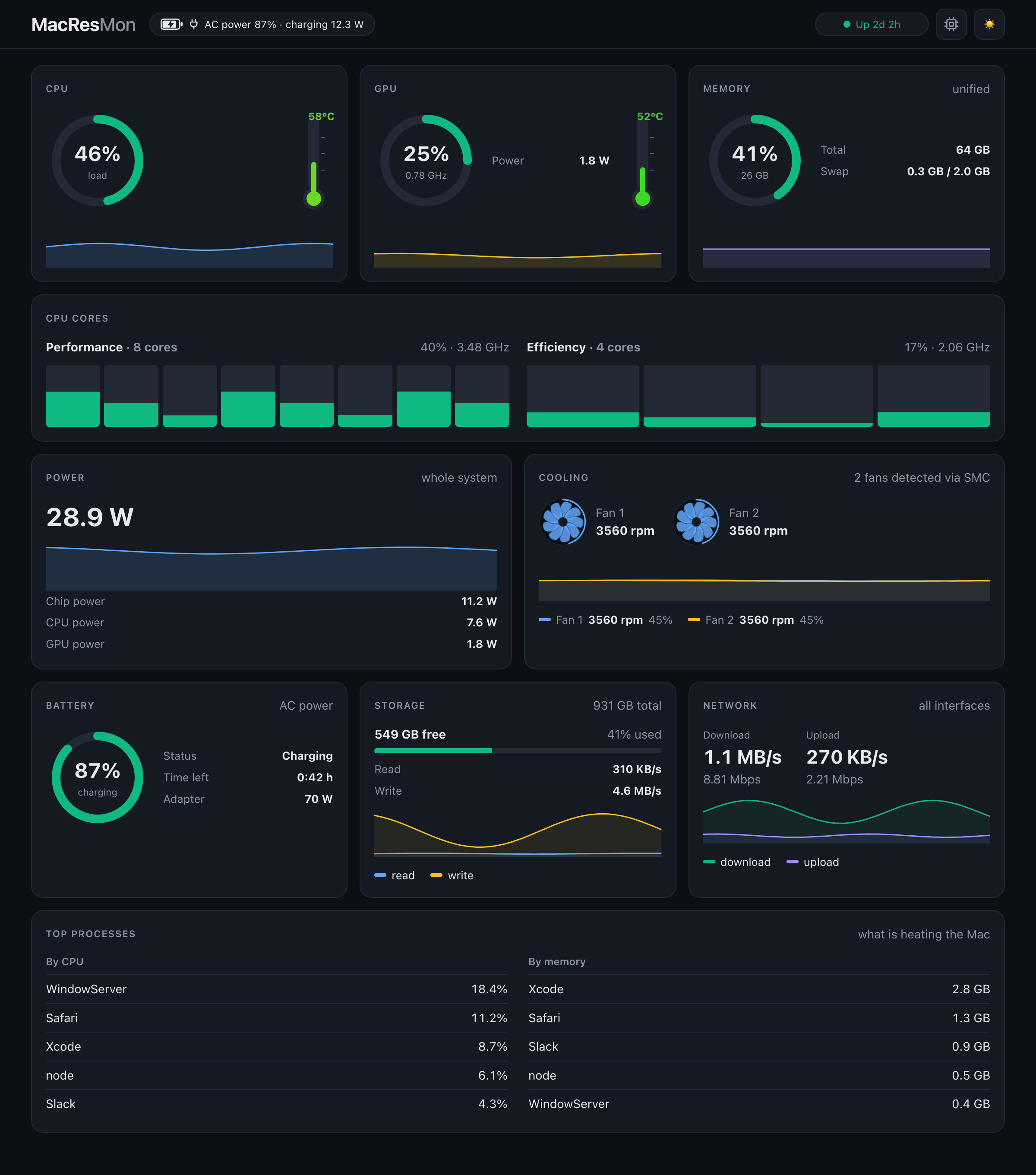
MacResMon is a free, MIT-licensed monitor for Apple Silicon that shows temperatures, fan RPM, power draw, battery, disk, network and the top five processes by CPU and memory in one window, plus a menu bar readout with CPU percent and temperature. It uses macmon under the hood, so it also needs no sudo, and it makes no network connections.
I made it because the question I kept asking wasn't "what's the temperature" but "the fans are at full speed, who did this". Seeing temps, fan RPM and the busiest process side by side answers that in one glance instead of three apps.
The first time I ran it, the culprit was me. I had a local LLM running and DaVinci Resolve open at the same time. Both lean hard on the GPU, and together they pushed it to about 95 °C with the fans close to 5,000 RPM. That's the kind of combination this window is built to catch: two heavy apps, each looking reasonable on its own, adding up to one hot Mac.
It also sends a macOS notification when CPU or GPU hits 90 °C, a fan reaches 95% of its max, or memory gets 90% full, even with the window closed.
What it doesn't do: it's Apple Silicon only, it monitors and never controls fans, and so far it has only been tested on my MacBook Pro M5. There's no prebuilt download yet, so you build it from source:
brew install macmon node
git clone https://github.com/proars/MacResMon.git
cd MacResMon
npm install
npm run native:build
open "native/build/MacResMon.app"
You'll need the Xcode Command Line Tools for Swift (xcode-select --install). The finished app is about 3.5 MB. If you run it on an Air, a Mac mini or a Studio, a compatibility report in the GitHub issues would help a lot.
What each tool can actually see
| Tool | Price | Temp in °C | Fan RPM | Needs sudo | Menu bar | Fan control |
|---|---|---|---|---|---|---|
| Activity Monitor | built in | no | no | no | no | no |
pmset -g therm |
built in | no (warnings only) | no | no | no | no |
powermetrics |
built in | no (thermal pressure only) | no | yes | no | no |
| macmon | free, open source | yes (CPU/GPU average) | yes | no | no | no |
| Stats | free, open source | yes, varies by chip | yes | no | yes | legacy |
| iStat Menus | paid, 14-day trial | yes | yes | no | yes | yes |
| MacResMon | free, open source | yes | yes | no | yes | no |
My pick: macmon for a one-off check, Stats if you want something in the menu bar for free, iStat Menus if you'll pay for polish or need fan control.
How hot is too hot for an M-series Mac?
Apple doesn't publish a "safe" CPU temperature for its chips, and numbers you see online belong to someone else's model and someone else's sensor. Treat any single figure as a rough guide, not a rule.
What is solid: Apple Silicon chips are designed to run hot under heavy load and throttle themselves before damage. Short spikes into the 90s °C during an export or a build are common on the Pro and Max chips. Macworld's rule of thumb is that CPUs and GPUs shouldn't sit above about 89 °C for long stretches, and that 100 °C is the point to back off the workload. Apple's own operating range is about the room, not the chip: 10 to 35 °C ambient.
The readings worth worrying about are patterns, not peaks:
- fans at full speed while the Mac is idle
- temperature high while CPU load is near zero
pmset -g thermshowing a logged performance limit when you weren't doing anything heavy- heat that started after a macOS update and never went away
For a reference point from my own desk: on my MacBook Pro M5, a local LLM and DaVinci Resolve running together took the GPU to about 95 °C with the fans close to 5,000 RPM. That's two heavy GPU jobs doing what heavy GPU jobs do, not a fault. The same fan speed with nothing open would worry me a lot more.
Also remember the MacBook Air has no fan at all since the M1. A fan monitor showing nothing on an Air is correct.
How to find what's heating your Mac
The temperature is the symptom. The process is the cause.
- Open your monitor and Activity Monitor side by side, or use one that shows top processes next to temps.
- Sort by CPU and watch for anything sitting high while you're not using it. Usual suspects: Spotlight (
mds_stores,mdworker) after an update or a big file copy, Photos analyzing a new library, a browser tab running something heavy, a stuck backup, Docker, or a local AI model you forgot was still loaded. - Check whether GPU temperature is the higher one. If it is, look at video, games, browser tabs with WebGL, or ML workloads.
- Give indexing jobs time. Spotlight and Photos often calm down on their own after a few hours on power.
- If heat stays high with nothing busy, run Apple Diagnostics (hold the power button at startup, then Command-D) to rule out hardware.
If you run local LLMs on a MacBook, this is the bit that bites. A model left loaded in Ollama can keep the GPU warm long after you stop typing, and you'll only notice from the fans. If you're still deciding whether local models are worth that heat, I wrote about which work they can actually take over from Claude.
My take
On an Apple Silicon Mac, built-in tools tell you whether macOS is worried. They won't tell you how hot anything is. You need one small tool for that, and brew install macmon is a one-minute fix.
Past that, pick by habit. If you glance at the menu bar all day, use Stats or iStat Menus. If what you really want is to catch the process behind the fan noise, use something that puts temps and top processes in one view.
And don't chase a magic number. A Mac that spikes to 95 °C during a build and drops back is fine. A Mac that's warm and loud while doing nothing is the one to investigate.
FAQ
Can you check Mac CPU temperature without installing anything?
Not in degrees on Apple Silicon. Activity Monitor has no temperature column, and powermetrics only reports thermal pressure levels on M-series chips. pmset -g therm tells you whether macOS logged a thermal warning, which is useful, but you need a tool like macmon, Stats or iStat Menus for an actual °C reading.
How do I check fan speed on a Mac in Terminal?
Install macmon with brew install macmon and run macmon. It shows each fan's current RPM next to temperatures and power draw, with no sudo needed. For scripting, macmon pipe -s 1 | jq prints one sample as JSON.
Why does powermetrics say "unrecognized sampler: smc"?
Because the smc sampler only existed for Intel Macs. On Apple Silicon, powermetrics no longer exposes those sensor readings, so the command fails by design. Use --samplers thermal,cpu_power for thermal pressure and power, or a third-party tool for degrees.
Does the MacBook Air have a fan?
No, every Apple Silicon MacBook Air from the M1 on is fanless. It cools passively and throttles under sustained load instead of spinning up. A monitor that shows no fan on an Air is reading it correctly.
Is it bad if my M-series Mac hits 100 °C?
Brief spikes under heavy load usually aren't dangerous, because the chip throttles itself to protect the hardware. Sustained 100 °C is a sign to lighten the load or check what's running. If it happens while the Mac is idle, find the process causing it, and run Apple Diagnostics if nothing obvious shows up.
Can these apps control fan speed?
Some can. iStat Menus and TG Pro can set fan speeds based on temperature, while Stats' fan control is legacy and unmaintained. macmon and MacResMon only monitor and leave cooling to macOS, which for most people is the safer default anyway.