Flint vs Qwen 3.8 27B on a MacBook Pro M5: my local AI setup in VS Code
I tried a pile of local models on my MacBook Pro M5 and kept two: Flint for fast fixes at 110 tokens/s, Qwen 3.8 27B for the harder work at 26. Here is the setup, the numbers, and how I split the work between them.

I didn't plan to end up with two local models.
I installed Ollama on my MacBook Pro M5, pulled a handful of models, and started throwing my normal daily work at them. Most got deleted within a day or two. Two stayed.
Flint, the new coding model Recursive released on October 21, handles quick fixes and simple code. Qwen 3.8 27B handles anything that needs real thinking. Both run through Ollama and both show up right inside VS Code chat in Agent mode, so I work with my local AI the same way I'd work with a cloud assistant.
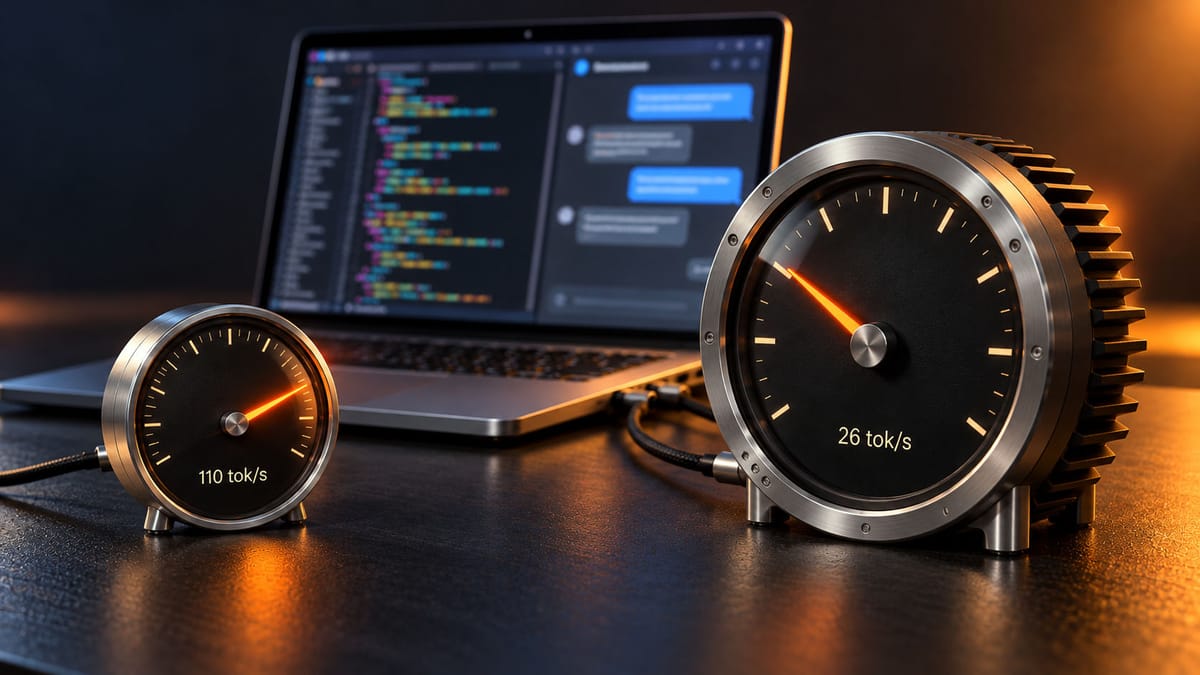
The short version: on my machine Flint generates about 110 tokens per second and Qwen 3.8 27B about 26. That four-times gap is the whole reason I keep both.
Why two models instead of one
One model can't be both fast and smart on a laptop. Not yet.
Qwen 3.8 27B is a dense 27-billion-parameter model. Every token it writes goes through all of those weights, so it's careful and slow. It's the one I trust when the task has several moving parts.
Flint is a mixture-of-experts (MoE) model from Recursive: about 40B parameters in total, but only around 2.5B are active for each token. MoE means the model routes each token to a small group of "expert" sub-networks instead of the whole thing. That's why it's so fast on the same hardware.
The trade-off is guidance. Recursive itself says Flint does best with well-scoped tasks, and that matches what I want from it anyway:
- fixing a typo-level bug the compiler already pointed at
- writing a small helper function
- renaming things, cleaning up a block, adding a missing check
- quick questions about syntax or an error message
- simple parts of a file I'd otherwise write by hand
Everything bigger goes to Qwen:
- changes that touch several functions or files
- figuring out why something fails when the error isn't obvious
- planning a feature before writing it
- reviewing code where a wrong answer costs more than a few minutes
I also tried Gemma along the way. It was fine, but next to Flint it felt slow for the same small jobs, so it didn't survive the cut.
Flint vs Qwen 3.8 27B: the speed numbers
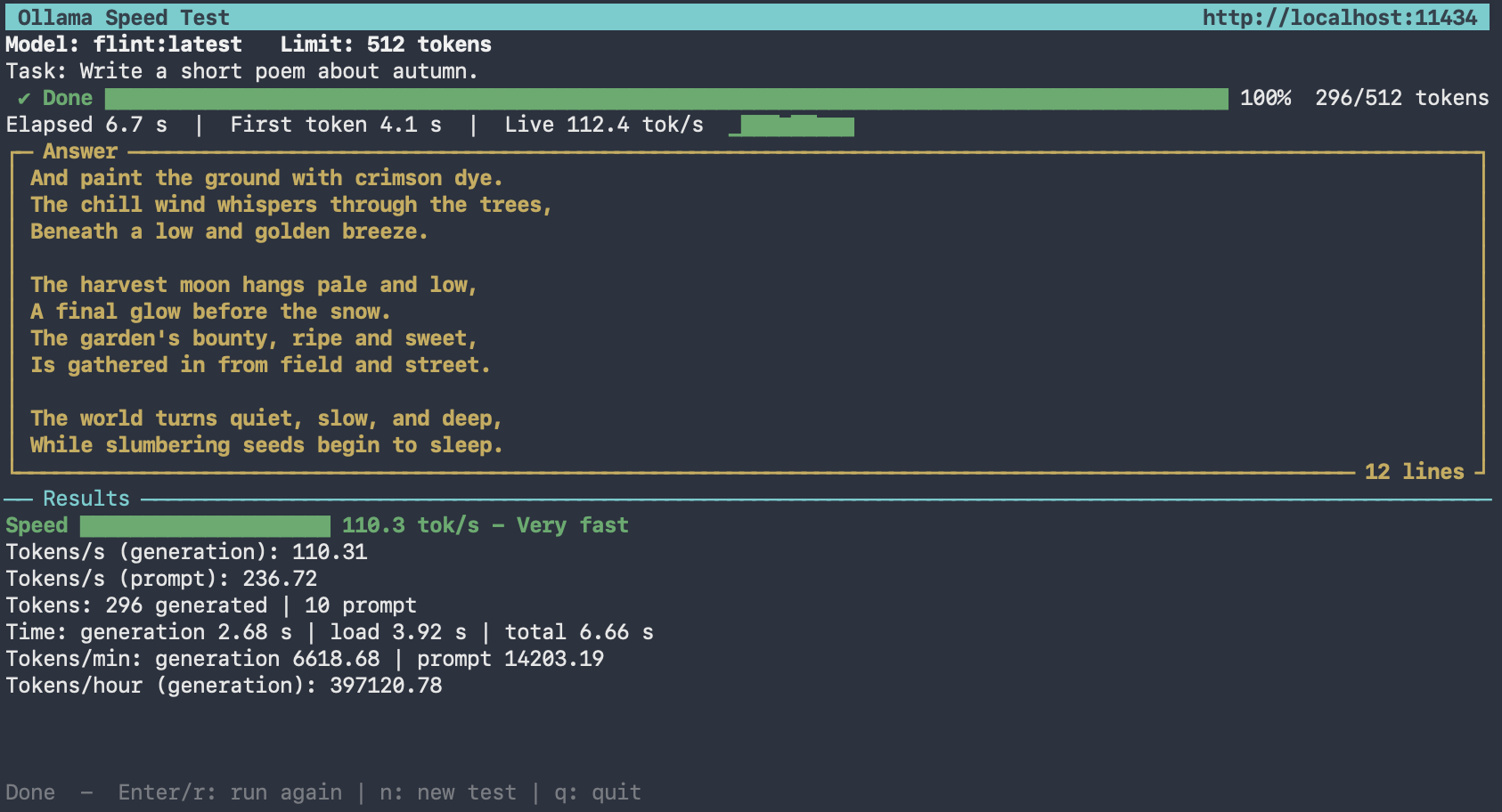
These are generation speeds from my MacBook Pro M5, measured with my own tool, Ollama Speed Test:
| Model | Type | Size in Ollama | Generation speed (my M5) |
|---|---|---|---|
flint |
MoE, ~40B total / ~2.5B active | ~23 GB | 110.31 tokens/s |
qwen3.8:27b |
27B, Q4_K_M | ~18 GB | 25.93 tokens/s |
My MacBook Pro M5 has 48 GB of unified memory. That's enough for either model with room for a decent context, and it's the size I'd call comfortable for this setup.
26 tokens per second is perfectly usable for chat. You can read along as it writes. But 110 feels different. A small fix appears almost before you finish reading your own question, and that changes how often you bother to ask. For the kind of quick work I give it, I'm very happy with Flint.
Both models are big downloads. Together they take around 41 GB of disk, and you need enough memory to hold whichever one you're using plus its context. On a 16 GB Mac, Flint is already tight.
How to set up Ollama in VS Code
This is the whole setup. It takes about as long as the model downloads.
1. Install Ollama and pull the models
Download Ollama for macOS from ollama.com/download, install it, and start it. Then pull the models you want:
ollama pull qwen3.8:27b
ollama pull flint
Check they're there:
ollama list
You don't have to copy my pair. Pull whatever fits your RAM and your work. The VS Code side doesn't care which models you use.
2. Install the Ollama extension in VS Code
Install the official Ollama extension from the VS Code Marketplace (publisher ID Ollama.ollama).
According to the Ollama docs, you need VS Code 1.127 or newer. Older versions don't reliably cancel requests from model providers, which gets annoying fast when a slow model goes off on a tangent. Ollama 0.17.6 or newer is recommended.
3. Pick a model and switch the chat to Agent
Open Chat in VS Code, click the model picker at the bottom of the chat input, and choose a model from the Ollama section.
No API key, no account, no sign-in for local models. The extension finds Ollama at http://127.0.0.1:11434 by default.
Next to the model picker there's a mode switch with two options I care about:
- Ask just answers in the chat. You read the reply and copy what you need.
- Agent lets the model work on your project: read files, edit them, and run steps on its own, with you approving the changes.
I keep it on Agent. That's what makes a local model feel like an assistant instead of a chatbot in a sidebar. Agent mode needs a model that supports tool calling, and both flint and qwen3.8:27b list tools support in the Ollama library.
I switch between Flint and Qwen right there in the picker depending on the task. It takes two clicks.
If your models don't show up
Run through this in order:
- make sure Ollama is actually running
- run
ollama listto confirm the models are pulled - in the Command Palette, run Ollama: Refresh Models
- still nothing: run Ollama: Diagnose Models and read the Ollama output channel
Turning the thinking down for quick tasks
Both models can "think" before answering, and Qwen 3.8 has thinking on by default. For a hard bug that's what you want. For "rename this variable" it's wasted time.
The extension lets you set the thinking effort per model in your user settings JSON (Command Palette → Preferences: Open User Settings (JSON)):
{
  "ollama.thinkingLevels": {
    "qwen3.8:27b": "low"
  }
}
Use the exact model name from ollama list, and only values the model supports. Unsupported values are ignored, and deleting the entry brings back the default. No restart needed.
How to measure tokens per second yourself
My numbers are from my laptop. Yours will be different, so measure them. Speed is the thing that decides whether a local model is pleasant or painful to use.
The quickest check is built into Ollama:
ollama run flint --verbose
Ask it something and it prints the eval rate after the answer.
--verbose is fine for a quick look, but it's awkward when you want to compare models properly: different prompts, different answer lengths, a model that's still warm from the last run. So I wrote my own tool for it, Ollama Speed Test. It's free and MIT-licensed.
What Ollama Speed Test does
It sends a prompt to a model in Ollama, streams the answer into a live terminal dashboard, and when the run finishes it reports the speed using the timing data Ollama itself returns. No guessing on the client side.
What you get at the end of a run:
- generation speed (tokens/s): how fast the model writes the answer. This is the number people usually mean by "tokens per second", and it's the one in my table above
- prompt speed (tokens/s): how fast the model reads your prompt before it starts answering. Usually much higher, because the prompt is processed in parallel
- token counts for the answer and the prompt
- generation time, model load time and total time
- a simple speed rating, from "very slow" (under 5 tokens/s) to "very fast" (over 60)
- best and average speed when you repeat the test on the same model
While the model is writing you see a progress bar, the time to first token, a live tokens/s figure with a small sparkline, and the answer streaming in. You can cancel at any moment with q or Esc, even while the model is still loading.
A few details make the numbers more honest than a quick --verbose check:
- it unloads the model after every run (
keep_alive: 0), so each test starts from the same clean state - a result only counts if Ollama sends its final "done" message. If the stream breaks mid-answer, you get an error, not a half-measured number
- you can set a length limit (128, 256, 512 or 1024 tokens), so every model writes the same amount and the comparison is fair
How to run it
It's one Python file with no dependencies, nothing to pip install. You need Python 3.8 or newer and Ollama running with at least one model pulled. The interactive dashboard works on macOS and Linux. On Windows, plain text mode works out of the box.
git clone https://github.com/proars/ollama-speed-test.git
cd ollama-speed-test
python3 ollama_speed_test.py --interactive
The wizard walks you through three steps: pick one of your installed models (it shows parameters, quantization and size on disk), pick a task, and pick a length limit. There are 13 built-in tasks, from a one-word "quick ping" that mostly measures load time, through code, SQL and logic puzzles, to an 800-word essay as a stress test. Or type your own prompt.
For a quick one-shot run, or for scripts and logs, use plain text mode:
python3 ollama_speed_test.py --model flint --max-tokens 256
It also works against Ollama on another machine, which is handy for a homelab box:
OLLAMA_BASE_URL=http://192.168.1.50:11434 python3 ollama_speed_test.py -m qwen3.8:27b
Two tips for comparing models. Because every run unloads the model, the time to first token always includes load time, so compare generation speed, not total time. And run each model a few times with the same task and the same length limit. One short run is noisy.
No limits, no meter, no upload
The part I like most isn't the speed. It's that nothing is metered.
There's no usage limit to watch and no "you've reached your quota, try again at 3pm". I can ask the same thing ten times, throw a whole file at the model just to see what it says, or let Agent mode take five attempts at a fix. None of it costs anything but electricity.
And my code stays on my laptop. Nothing gets uploaded to anyone's server, which matters the moment you're working on a client project or anything with keys and configs lying around.
That doesn't mean I trust the output blindly. Whatever the agent changes gets reviewed like code from a junior. But the junior is free, fast, and always available.
Where I'd still reach for a cloud model
Local models are good now, but I still draw a line. I wrote about it in more detail in what I'd use local AI for and what I wouldn't. Short version: if a confident wrong answer would leak data, break payments or ship a security bug, I want a stronger model and a slower review.
For everything else, my two-model setup covers a lot more of my day than I expected.
My take
If you've got a recent Mac with enough memory, don't look for the one perfect local model. Pick a fast one and a smart one.
The fast one gets used constantly because it never makes you wait. The smart one gets used less, but on the problems that matter. Flint and Qwen 3.8 27B are my pair right now. In six months it'll probably be two different names, and the split will still make sense.
FAQ
How do I use Ollama models in VS Code?
Install the official Ollama extension (Ollama.ollama) from the VS Code Marketplace, make sure Ollama is running with at least one model pulled, then open VS Code Chat, choose a model from the Ollama section of the model picker, and switch the mode to Agent if you want it to edit files for you. You need VS Code 1.127 or newer. Local models need no account or API key.
Is Flint better than Qwen 3.8 27B for coding?
Flint is much faster, Qwen 3.8 27B is stronger. On my MacBook Pro M5, Flint generates about 110 tokens/s against Qwen's 26, but Qwen handles harder, multi-step problems better. I use Flint for small, well-scoped fixes and Qwen for anything that needs more reasoning.
How much RAM do I need for Qwen 3.8 27B and Flint?
The Ollama download of qwen3.8:27b is about 18 GB and flint is about 23 GB, and the model has to fit in memory along with its context. In practice that means 32 GB of unified memory or more is comfortable for either one. A 16 GB Mac is tight even for Flint.
Why is Flint so much faster than Qwen 3.8 27B?
Flint is a mixture-of-experts model: about 40B parameters in total, but only around 2.5B are active for each token. Qwen 3.8 27B is a dense model that uses all 27B parameters for every token. Less work per token means more tokens per second on the same hardware.
How do I check tokens per second in Ollama?
Run ollama run <model> --verbose and Ollama prints the eval rate after each answer. For repeatable comparisons between models, use a benchmark tool like Ollama Speed Test, which reads the timing data Ollama returns and unloads the model between runs.