Robocopy examples and syntax: copy, mirror, move and back up folders on Windows
Robocopy is the fastest built-in way to copy, mirror or move large folders on Windows 11, 10 and Server. Here are the commands you'll actually use, the switches that matter, what the exit codes mean, and how not to wipe a folder with /MIR.

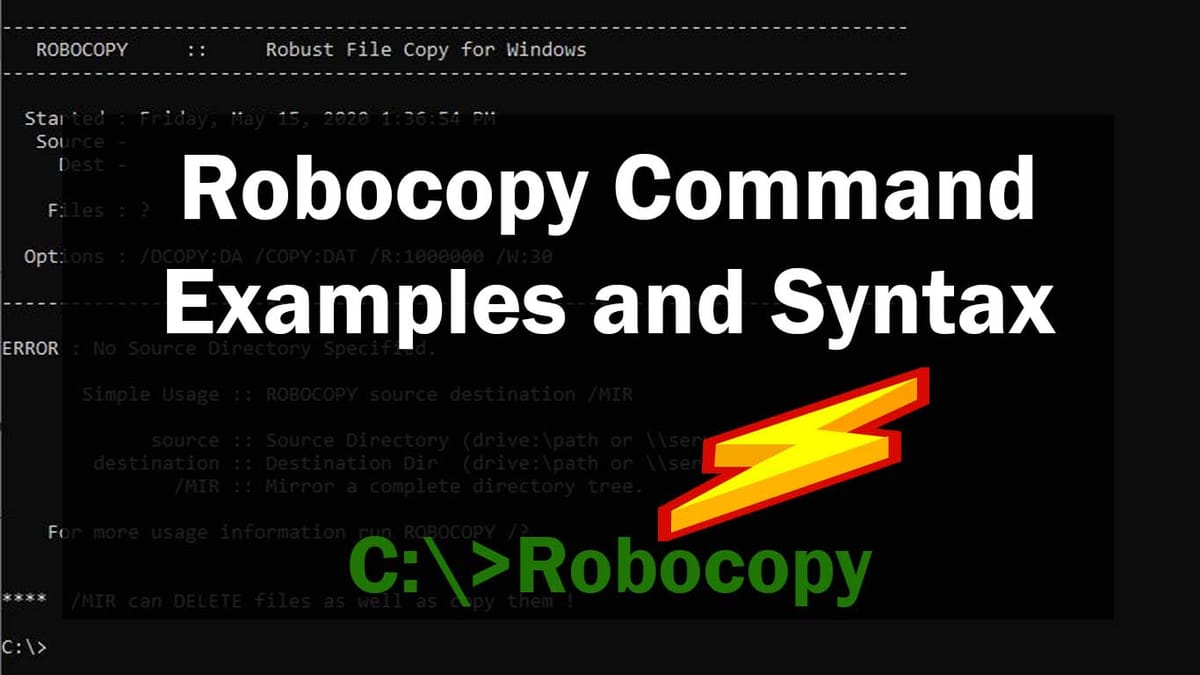
Updated November 2026: rewritten with real-world examples for Windows 11, 10 and Server, safe use of /MIR, retries that don't hang for days, exclusions, logging, exit codes for scripts and scheduled backups.
Robocopy has been built into every Windows since Vista. It copies folders much faster than Explorer, survives network drops, keeps permissions and timestamps, and can mirror one folder to another. Explorer is fine for a few files. For a few hundred thousand, or anything over the network, use robocopy.
Short answer: to copy a whole folder with all subfolders:
robocopy C:\Source D:\Destination /E /R:2 /W:5
/E copies subfolders including empty ones. /R:2 /W:5 limits retries, because the default is one million retries with 30 seconds between them, which can make a single locked file stall the copy for weeks.
Robocopy syntax
robocopy <source> <destination> [<file>[ ...]] [<options>]
- source and destination are folders, never files.
D:\Backup,\\nas\share\folder. - file is optional: a name or wildcard like
*.pdf. Default is*.*, all files. - Put paths with spaces in quotes, and don't end a quoted path with a backslash:
"D:\My Files"works,"D:\My Files\"breaks the command line parsing.
By default robocopy copies only the files in the top folder, with data, attributes and timestamps (/COPY:DAT). No subfolders until you add /E or /S. Run robocopy /? for the full list of options.
Robocopy examples
Copy a folder with all subfolders
robocopy C:\Projects D:\Backup\Projects /E
Only new and changed files are copied. Run it again tomorrow and robocopy skips everything that hasn't changed, which makes it a decent incremental backup by itself.
Copy only certain files
robocopy C:\Users\ars\Documents D:\PDFs *.pdf *.docx /S
/S copies subfolders but skips empty ones, which is what you want when filtering by file type.
Mirror a folder (make destination identical to source)
robocopy C:\Data \\nas\backup\Data /MIR /R:2 /W:5
/MIR copies everything new or changed and deletes files and folders in the destination that no longer exist in the source. It's the right tool for keeping a backup copy in sync. It's also the switch that destroys data when the paths are wrong. See the safety section below before using it.
Copy over the network, resume after drops
robocopy C:\Data \\fileserver\share\Data /E /Z /R:5 /W:10
/Z is restartable mode: if the connection drops in the middle of a big file, robocopy continues from where it stopped instead of starting the file again. It's slower on small files, so use it for large files over unreliable links.
With /ZB you get the same, plus a fallback to backup mode if access is denied (needs an admin prompt).
Faster copies with multiple threads
robocopy D:\Photos \\nas\photos /E /MT:16 /R:2 /W:5 /LOG:C:\Logs\photos.log
/MT:16 copies 16 files at the same time. The default for /MT is 8, maximum 128. It helps most with many small files and over the network. On a single spinning hard drive, more threads can make it slower, so 8 to 16 is a good start.
With /MT, write the log to a file with /LOG as above. Printing every file to the console slows a multithreaded copy down.
Move files (copy, then delete from source)
robocopy C:\Downloads\Old E:\Archive /E /MOVE
This moves files and folders. Use /MOV instead to move only the files and leave the empty folders behind.
Copy files older than N days to an archive
robocopy D:\Logs E:\LogArchive *.log /S /MOV /MINAGE:30
Here /MINAGE:30 takes only files older than 30 days. /MAXAGE:7 does the opposite: only files changed in the last 7 days.
Exclude folders and files
robocopy C:\Users\ars D:\Backup\ars /E /XD AppData node_modules .git /XF *.tmp *.iso
/XD excludes folders by name (anywhere in the tree), /XF excludes files. Excluding AppData when copying a user profile avoids thousands of locked and useless cache files.
Migrate a file share with permissions
On a file server migration you want ACLs, owner and timestamps too. Run as administrator:
robocopy \\oldserver\share \\newserver\share /MIR /COPYALL /DCOPY:DAT /ZB /MT:32 /R:1 /W:1 /LOG:C:\Logs\migration.log /TEE
/COPYALLcopies data, attributes, timestamps, NTFS permissions, owner and auditing info./DCOPY:DATkeeps folder timestamps too./TEEwrites to the log and the console at the same time.
Run it once days before the cutover (long), then again right before the switch. The second run only copies what changed, so the downtime is short.
Copy only folder structure, no files
robocopy C:\Template D:\NewProject /E /XF *
Excluding every file with /XF * leaves only the folder tree.
Test first: list what would happen
robocopy C:\Data \\nas\backup\Data /MIR /L
/L lists what robocopy would copy and delete without doing anything. Use it every time before the first /MIR run.
The switches that matter
| Switch | What it does |
|---|---|
/S |
Copy subfolders, skip empty ones |
/E |
Copy subfolders, including empty ones |
/MIR |
Mirror: /E plus delete extra files in destination |
/Z |
Restartable mode, resumes large files after a drop |
/B, /ZB |
Backup mode (bypasses permissions, admin only) |
/MT:n |
Copy with n threads (default 8, max 128) |
/COPYALL |
Copy data, attributes, timestamps, ACLs, owner, auditing |
/DCOPY:DAT |
Keep folder attributes and timestamps |
/MOV, /MOVE |
Move files / move files and folders |
/XD, /XF |
Exclude folders / files |
/XO |
Skip files that are older than the copy in destination |
/MINAGE:n, /MAXAGE:n |
Only files older / newer than n days |
/R:n, /W:n |
Retries and wait between retries (defaults: 1,000,000 and 30 s) |
/L |
List only, change nothing |
/LOG:file, /LOG+:file |
Write a log (overwrite / append) |
/TEE |
Log to file and console |
/NP |
No percentage progress (cleaner logs) |
/COMPRESS |
Request SMB compression over the network (newer Windows versions, ignored if the other side doesn't support it) |
The complete list is in Microsoft's robocopy reference.
/MIR safety: how not to delete everything
/MIR makes the destination look exactly like the source. If you swap source and destination, or point the source at an empty or wrong folder, robocopy happily deletes the destination to match.
Rules I follow:
- Run with
/Lfirst. Read the list of*EXTRA Filelines. Those are what will be deleted. - Never mirror to the root of a drive (
D:\). Always to a dedicated folder (D:\Backup\Data). - Double-check the order. It's always
robocopy FROM TO. - Don't mirror from a share that might be offline. If the source is a network drive that fails to connect and appears empty, the destination gets emptied too.
- A mirror is not a backup. If ransomware encrypts the source, the next
/MIRrun copies the encrypted files over your good ones. Keep versioned backups as well.
Robocopy exit codes
Robocopy's exit codes confuse every script and scheduler, because 1 means success. The code is a bitmask:
| Code | Meaning |
|---|---|
| 0 | Nothing to copy, source and destination already in sync |
| 1 | Files were copied successfully |
| 2 | Extra files or folders found in destination (nothing failed) |
| 3 | Copied, and extra files found (1 + 2) |
| 4 | Mismatched files or folders found |
| 5–7 | Combinations of the above, still no failures |
| 8 | Some files or folders could not be copied |
| 16 | Serious error, nothing was copied (bad path, no access) |
Treat 0–7 as success and 8 or higher as failure. In a batch file:
robocopy C:\Data \\nas\backup\Data /MIR /R:2 /W:5 /NP /LOG+:C:\Logs\backup.log
if %ERRORLEVEL% GEQ 8 (
    echo Backup failed with code %ERRORLEVEL%
    exit /b 1
)
exit /b 0
The exit /b 0 at the end matters for Task Scheduler and backup tools. Without it, a successful copy (code 1) shows up as a failed task.
In PowerShell, check $LASTEXITCODE -ge 8 the same way.
Schedule robocopy as a nightly backup
Save the batch file above as C:\Scripts\backup.bat, then create a daily task at 2 AM from an admin terminal (Win + X → Terminal (Admin), the same one you'd use to edit the hosts file):
schtasks /Create /TN "Nightly robocopy backup" /TR "C:\Scripts\backup.bat" /SC DAILY /ST 02:00 /RU SYSTEM
/RU SYSTEM runs it whether or not you're logged in. All schtasks options are in Microsoft's schtasks reference. If the destination is a network share, the SYSTEM account authenticates as the computer, not as you. For a NAS that needs a username, run the task as a user account that has access to the share instead.
Common errors
ERROR 5 (0x00000005) Access is denied
You can't read the source or write the destination. Run the terminal as administrator and add /B or /ZB, or check the share permissions.
ERROR 32 (0x00000020) The process cannot access the file because it is being used by another process
The file is open somewhere (Outlook PST, a database, a running VM disk). Close the program, or accept that robocopy skips it after the retries you set with /R. Robocopy doesn't copy locked files. For those you need a VSS-based backup tool.
Robocopy seems frozen on one file
It's retrying a failed file with the default one million retries, 30 seconds apart. Press Ctrl+C and always add /R:2 /W:5 (or similar).
ERROR 123 ... The filename, directory name, or volume label syntax is incorrect
Usually a quoted path ending with a backslash, like "D:\My Files\". Remove the trailing backslash.
My take
For one-off copies, robocopy SRC DST /E /R:2 /W:5 covers nearly everything. For backups, use /MIR only after a /L dry run, log to a file, and check exit codes as 8 and up. And always set /R and /W. The defaults made sense for 1990s network shares, not for a copy you want to finish tonight.
If you're copying between Linux servers instead, the equivalent tools are rsync and scp. I covered the second one in copying files and folders over SSH with SCP.
FAQ
What is the basic robocopy command to copy a folder?
robocopy C:\Source D:\Destination /E copies the folder with all subfolders, including empty ones. Add /R:2 /W:5 so a locked file doesn't stall the copy with the default one million retries.
What is the difference between /E and /MIR in robocopy?
/E copies new and changed files and never deletes anything. /MIR does the same and also deletes files and folders from the destination that no longer exist in the source, so the destination becomes an exact mirror.
Is robocopy faster than Explorer copy?
Usually yes, especially for many small files and over the network, because it can copy with several threads (/MT), skips unchanged files and resumes after interruptions. For one large file on a local disk the difference is small.
Why does robocopy return exit code 1?
Exit code 1 means files were copied successfully. Robocopy codes 0 to 7 all mean success, and only 8 and above mean some files failed. Schedulers that expect 0 for success need a wrapper that returns 0 for codes below 8.
Does robocopy copy permissions?
Not by default. The default is /COPY:DAT (data, attributes, timestamps). Add /SEC to copy NTFS permissions, or /COPYALL for permissions, owner and auditing info. Copying owner and auditing info needs an administrator prompt.