Install and Log In to Windows 11 Without a Microsoft Account
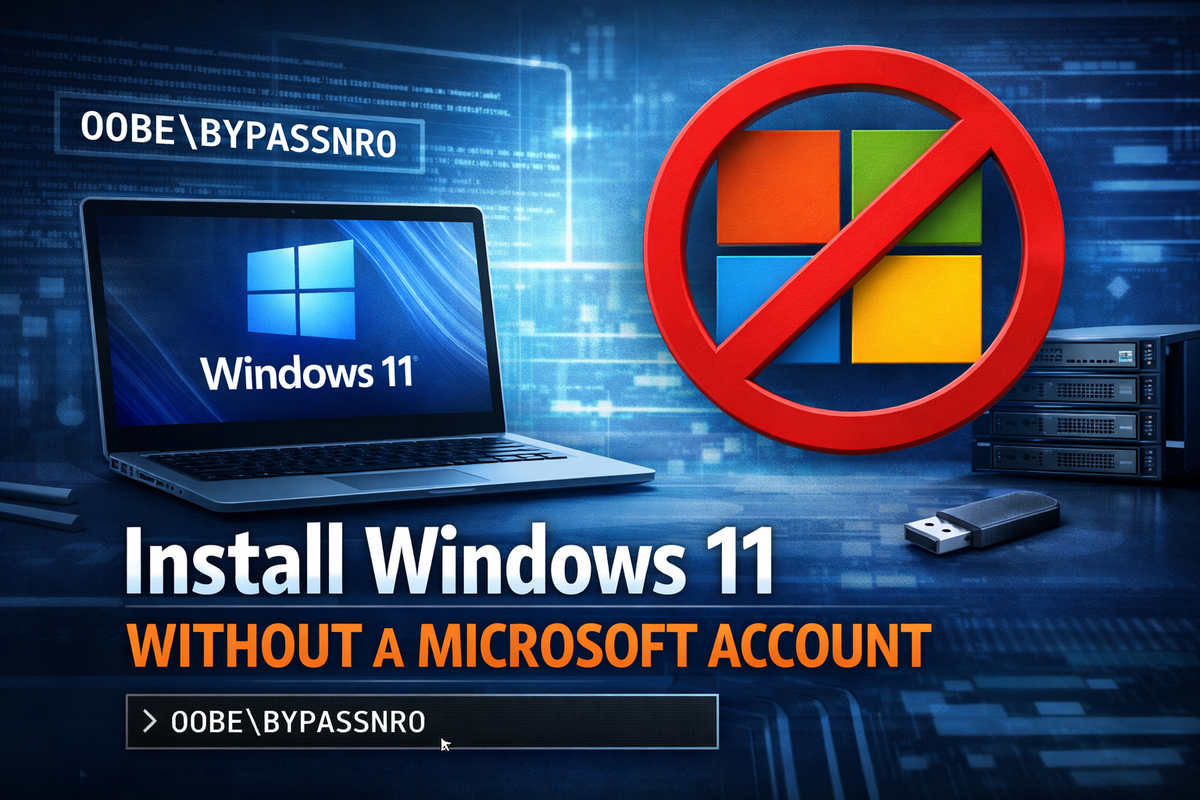
Windows 11 aggressively forces Microsoft account sign-in during setup. This guide shows how to install and use Windows 11 with a local account only, using reliable command-line methods that work on Home and Pro editions.

Why Windows 11 Forces a Microsoft Account
Microsoft has gradually removed the visible option to create a local account during Windows 11 setup. Starting with Windows 11 22H2 and becoming stricter in 23H2, the out-of-box experience (OOBE) often blocks progress until a Microsoft account is provided.
This is not a technical limitation. Windows still fully supports local accounts. The restriction exists only in the setup flow.
In practice, whether you can skip Microsoft sign-in depends on several factors: the Windows 11 version, the edition (Home or Pro), whether internet access is detected during setup, and whether the installation media is a clean ISO or an OEM image.
Microsoft’s goal is clear: push cloud integration by default. The result for users is an intentionally narrowed setup path.
Does Windows 11 Still Allow Local Accounts?
Yes. Local accounts still work exactly as before once Windows is installed.
What changed is how difficult Microsoft makes it to create one during the initial setup. The graphical option is hidden, not removed. If setup is forced into an offline path or bypasses the UI checks, Windows allows a local user without issues.
This means skipping a Microsoft account is still possible — but no longer obvious.
Methods to Install Windows 11 Without a Microsoft Account
Method 1 — OOBE\BYPASSNRO (Recommended)
This is the most reliable and widely used method.
It forces Windows setup to expose the local account creation screen by restarting OOBE in offline mode.
Works on:
- Windows 11 22H2
- Windows 11 23H2 (still works in many cases)
Often fails on:
- OEM laptops with custom images
- Setups where internet was already cached
Steps:
- When the Microsoft account sign-in screen appears, press Shift + F10
- In Command Prompt, run: OOBE\BYPASSNRO
- The system will reboot
- Choose I don’t have internet
- Create a local account
If the command is accepted, this method avoids any registry edits.
Method 2 — Disconnect Internet During Setup
This method relies on setup failing to reach Microsoft servers.
Reality check:
On newer builds, this works inconsistently.
Works on:
- Some Windows 11 22H2 installs
Usually fails on:
- Windows 11 23H2
- Systems with cached Wi-Fi or Ethernet drivers
To try it:
- Physically unplug Ethernet
- Disable Wi-Fi from BIOS if possible
- Avoid connecting to any network until the desktop loads
If setup already detected internet once, this method often stops working.
Compatibility by Windows 11 Version
| Windows Version | Local Account Possible | Notes |
|---|---|---|
| 21H2 | Yes | Visible option |
| 22H2 | Yes | Hidden, workarounds required |
| 23H2 | Yes | Many UI methods blocked |
| 24H2 | Uncertain | Restrictions increasing |
FAQ — Windows 11 Local Account
Can Microsoft force sign-in later?
No. Once a local account exists, updates do not require Microsoft login.
Does this work on laptops?
Usually yes, but OEM images can block some methods.
Will updates remove my local account?
No. Updates do not convert local accounts automatically.
Installing Windows 11 without a Microsoft account is still possible, still supported, and still the right choice for controlled, reproducible environments.